
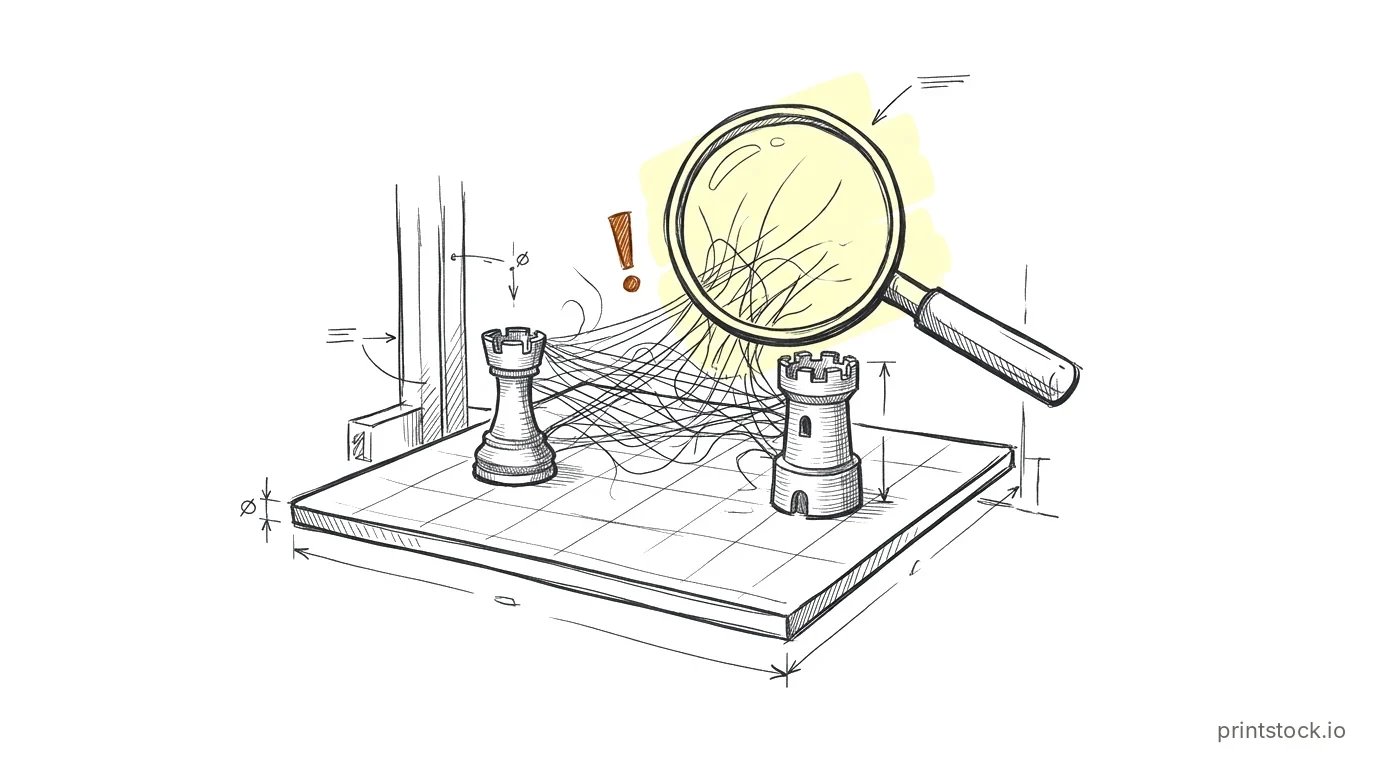
You take a print off the plate and it looks like a spider moved in: thin plastic hairs stretched between every tower and spike. That is stringing, one of the most common 3D printing problems, and almost always one of the easiest to fix. This guide explains why it happens and walks through the fixes in the order that solves it fastest.
What is stringing in 3D printing?
Stringing is thin strands of plastic left on a print where the nozzle travelled between two separate parts of the model. Molten plastic leaks from the nozzle during the travel move and stretches into a hair, like cheese pulled from a pizza.
It shows up most on models with several separate features at the same height: chess pieces printed together, towers, the spikes of a crown, the fingers of a figure. On a single solid shape the nozzle rarely leaves the part, so there is little chance to string. Oozing is the same problem seen from the nozzle's side: plastic drips out while the printer is moving or waiting.
Stringing is mostly cosmetic, but it is worth fixing. Heavy stringing goes together with blobs, rough surfaces and weaker layers, and it often means the filament is wet or the temperature is wrong, which affect the whole print.
Why does a 3D printer string?
A printer strings when plastic in the nozzle is runny enough to flow out on its own during a travel move. Four things make that happen, and they often combine.
- Wet filament. Most filaments absorb moisture from the air. In the nozzle the water turns to steam, pushing out extra plastic and making it thinner. Prusa's troubleshooting guide lists a damp spool as a cause and suggests trying a different spool to check.
- Nozzle too hot. Hotter plastic is runnier and oozes more. Prusa's guide recommends lowering the temperature by 5 to 10 °C as one of the first things to try.
- Weak retraction. Before a travel move, the extruder pulls the filament back a little (retraction) to relieve pressure in the nozzle. Too short or too slow a retraction leaves plastic ready to drip.
- Long travel over open space. The longer the nozzle hangs over empty air, the more time plastic has to leak.
Some materials string more than others. PLA is the most forgiving. PETG is famously stringy because it prints hot and stays sticky, and flexible TPU strings because it is hard to retract. Both also absorb moisture faster than PLA.
How to fix stringing, in order
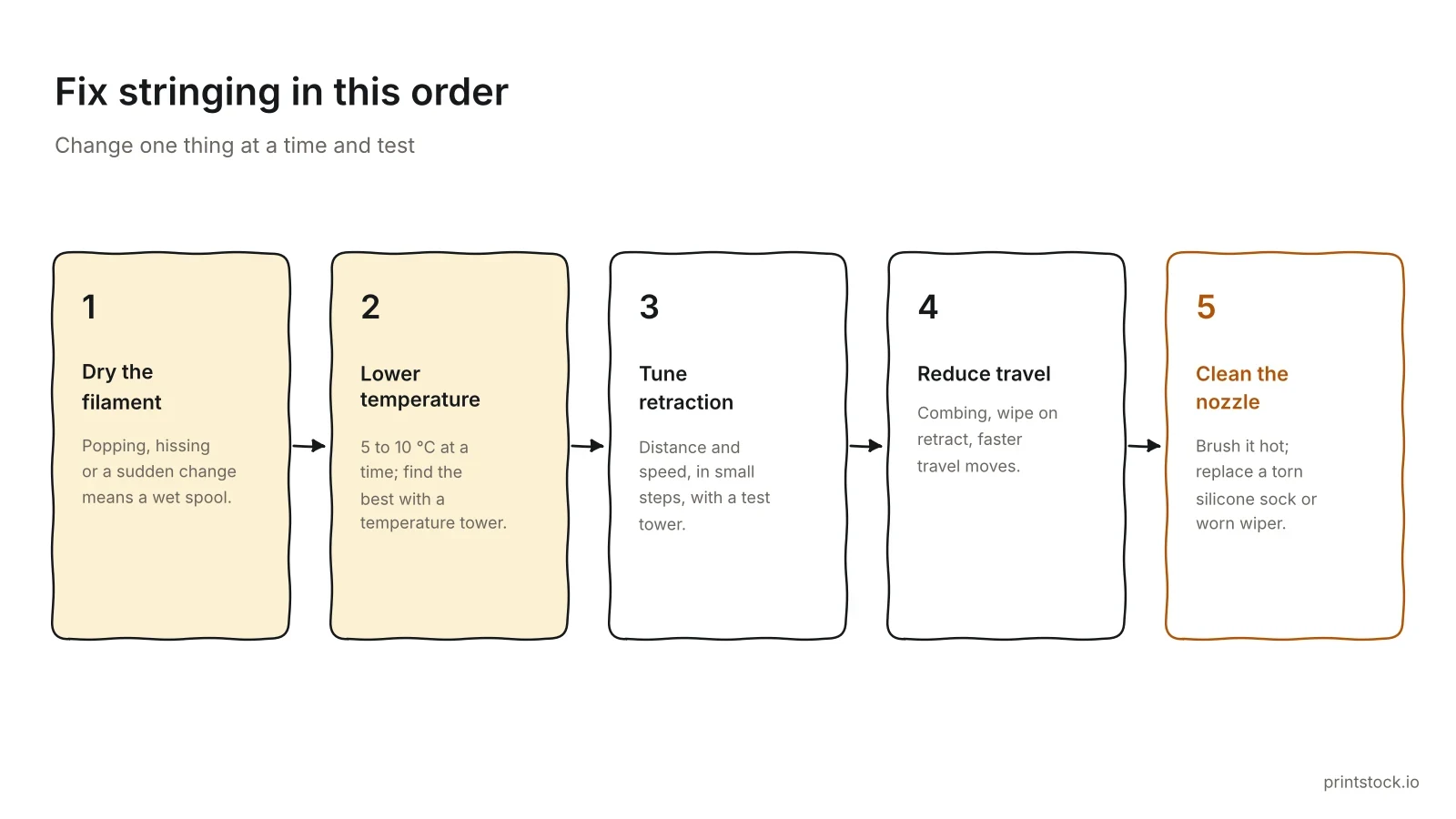
Fix stringing in this order: dry the filament, lower the temperature, tune retraction, reduce travel, then check the nozzle. Change one thing at a time and test with a small model so you know what worked.
1. Dry the filament
Drying the spool is the first step because wet filament strings whatever your settings are. Signs of a wet spool are popping or hissing at the nozzle, steam, a rough or bubbly surface and stringing that came on suddenly with an older spool.
Dry it in a filament dryer at the temperature on the spool or data sheet, for several hours, then print straight from the dryer or store the spool sealed with desiccant. Many people spend an evening tuning retraction on a wet spool; drying first saves that evening.
2. Lower the nozzle temperature
If the filament is dry and still strings, lower the nozzle temperature by 5 to 10 °C. Every filament has a range; stringing usually means you are at the hot end of it.
The quickest way to find the sweet spot is a temperature tower: a test model printed with a different temperature every few millimetres, which you can generate in most slicers. Pick the coolest section that still bonds well and has clean surfaces. Go too cold and you trade stringing for weak layers and under-extrusion, so do not chase zero strings at the cost of strength.
3. Tune retraction
If the temperature is right and strings remain, tune retraction distance and speed. Retraction pulls the filament back before a travel move so the nozzle does not drip.
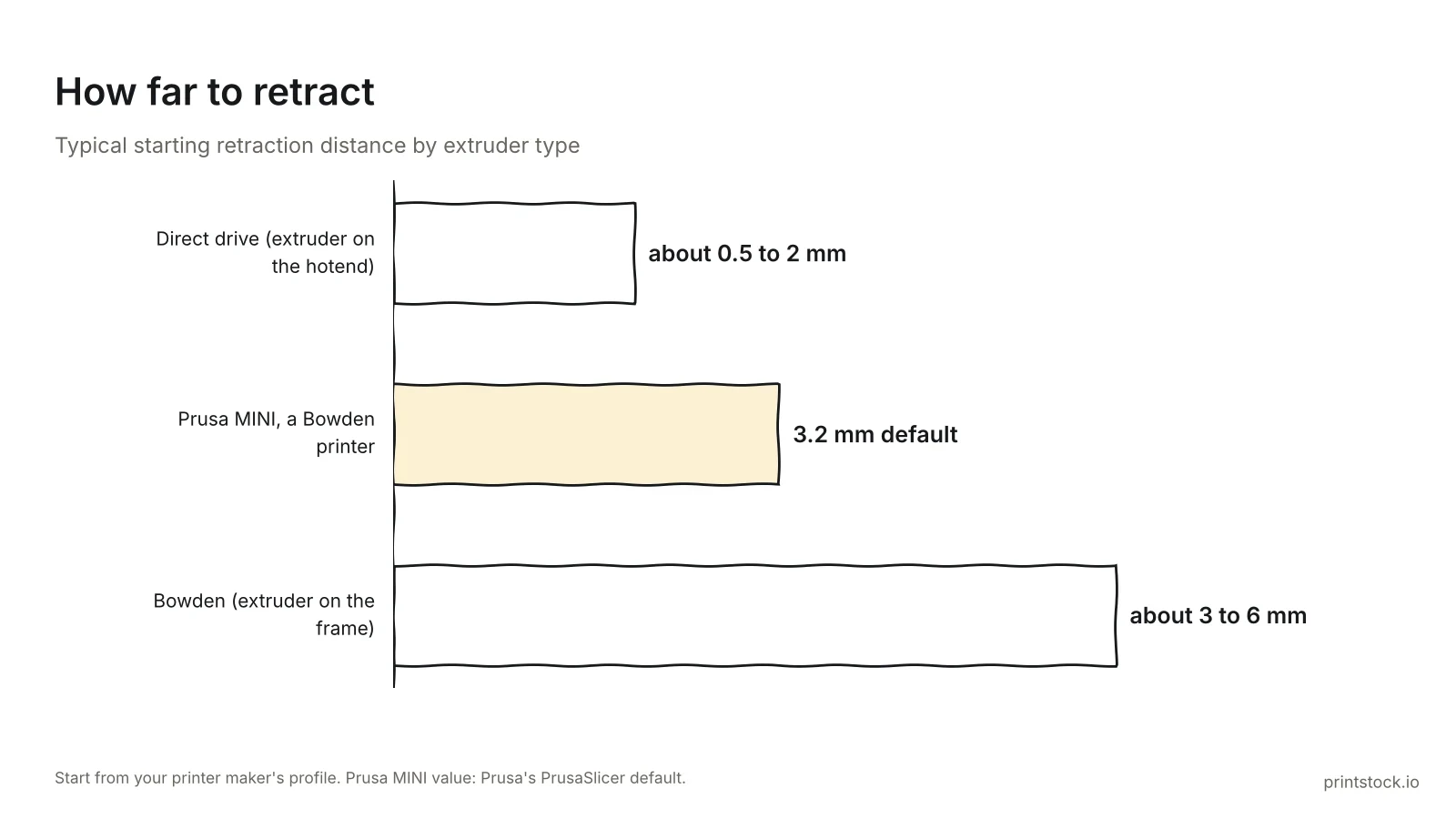
How much retraction you need depends on the extruder. On a direct drive printer the extruder sits right on top of the hotend, so a short pull, about 0.5 to 2 mm, is enough. On a Bowden printer the extruder sits on the frame and pushes filament through a long tube, which has some slack, so it needs more, often 3 to 6 mm. Prusa's MINI, a Bowden printer, uses 3.2 mm by default. Retraction speed matters too: too slow and plastic leaks before the pull completes.
Change retraction in small steps and test with a retraction tower or a two-towers stringing test. More is not always better. Too much retraction on a direct drive printer can pull molten plastic up into the cooler part of the hotend, where it hardens and causes a clog.
4. Reduce travel over open space
Shorter and smarter travel moves give plastic less time to leak. Most slicers have settings that help:
- Avoid crossing perimeters or combing: keeps travel moves inside the model where any ooze is hidden.
- Wipe on retract: wipes the nozzle along the part as it retracts.
- Travel speed: a faster travel move leaves less time for strings to form.
- Minimum travel after retraction: below this distance the printer does not retract; a lower value retracts more often.
Your printer's own slicer profile usually has these set sensibly already, which is another reason to start from the maker's profile rather than a generic one.
5. Clean the nozzle and check the silicone sock
If strings come with blobs and smears, look at the nozzle itself. Plastic baked onto the outside of the nozzle picks up and drags strands across the print, and a torn or missing silicone sock lets plastic build up around the heater block.
Wipe the nozzle while it is hot with a brass brush, replace a damaged sock, and on printers with a nozzle wiper, check that it still wipes cleanly. These parts are cheap and wear with use.
Is stringing a sign something is broken?
Usually not. Stringing is a settings and filament problem in the vast majority of cases, not a sign of a failing printer. It is one of the first problems almost every new owner meets, and it rarely needs a new part.
It is worth looking further if stringing appears suddenly on a printer and filament that used to print cleanly. Check the spool first, since filament can absorb moisture in storage, then check whether a firmware or slicer update changed your profile. Here are the printers in our catalog whose owners report stringing or oozing as a recurring issue, so you can see whether it is a known trait of your model:
Owners report this on 3 of the 370 printers we track
- Anycubic Kobra 2 Max: Plastic oozes at the heat block threads
- Anycubic Kobra X: Nozzle slides down and leaks
- Bambu Lab H2D: TPU clogs and oozes
How to remove strings after printing
Fine strings can be cleaned off in seconds with a heat gun or a hot air tool. Pass the hot air quickly over the print from a distance; the thin hairs melt and shrink away before the thicker walls heat up. Keep moving, or you will soften the part.
Thicker strings and blobs come off with a craft knife, flush cutters or a deburring tool. Light sanding finishes the job. This is a good habit for display pieces, but if every print needs it, go back to the fixes above.
Common mistakes when fixing stringing
The most common mistake is changing many settings at once. If three changes fix it, you do not know which one mattered, and if they make it worse, you do not know which to undo.
- Tuning retraction on a wet spool. You will never get it right until the filament is dry.
- Maxing out retraction. Too much can cause clogs, especially on direct drive printers.
- Dropping temperature too far. Strings disappear, but layers stop bonding and parts break.
- Using a generic profile. A printer maker's profile for its own hotend and extruder is usually a better start than settings copied from a forum for a different machine.
Where to go from here
If drying fixed your stringing, keeping filament dry is the long-term answer; our guide on how to dry and store filament covers dryers and storage. For the wear parts that affect oozing, see the nozzles, hotends and wipers in our accessories catalog, each matched to the printers it fits.
For PETG, the most stringy common filament, compare your temperatures with the makers' own numbers in our PETG settings guide.