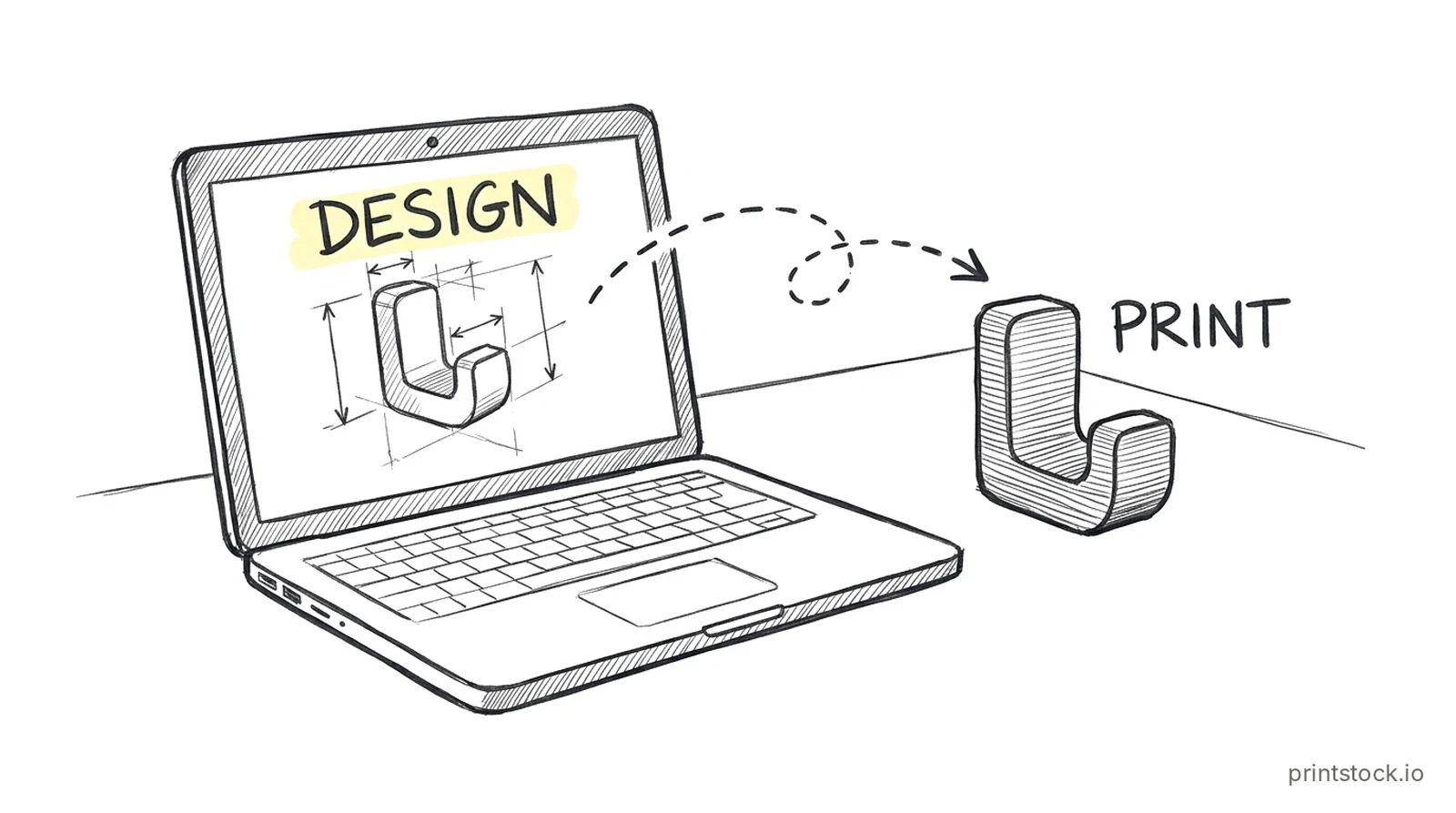
Downloading free models gets you a long way, but sooner or later you want a bracket that fits your shelf, a replacement knob, or a figure nobody has made yet. That means designing your own, and the first question is which program to use. There are dozens, and the right one depends far less on price than on what kind of object you want to print.
Two kinds of 3D modeling software
3D modeling programs fall into two families: CAD for precise parts and mesh or sculpting tools for organic shapes. Knowing which family you need narrows the choice to two or three programs.
- CAD (computer-aided design) builds solid objects from exact measurements: a box 60 mm wide with a 5 mm hole 12 mm from the edge. Most CAD for 3D printing is parametric: the program remembers each step and its numbers, so you can change one size later and the whole model updates. Fusion, Onshape, FreeCAD and Shapr3D work this way. Use CAD for brackets, enclosures, replacement parts, organizers and anything that has to fit something else.
- Mesh modeling and sculpting treats the object as a surface made of many small triangles that you push, pull and carve like clay. Blender and Nomad Sculpt work this way. Use them for figures, miniatures, creatures, cosplay props and decorative pieces where exact dimensions matter less than shape.
Tinkercad sits in between: you combine simple shapes such as boxes, cylinders and letters, and subtract shapes to make holes. It is the gentlest way to learn how 3D printing models are put together.
The best 3D modeling software for 3D printing, compared
Software | Type | Free version | Runs on | Best for |
|---|---|---|---|---|
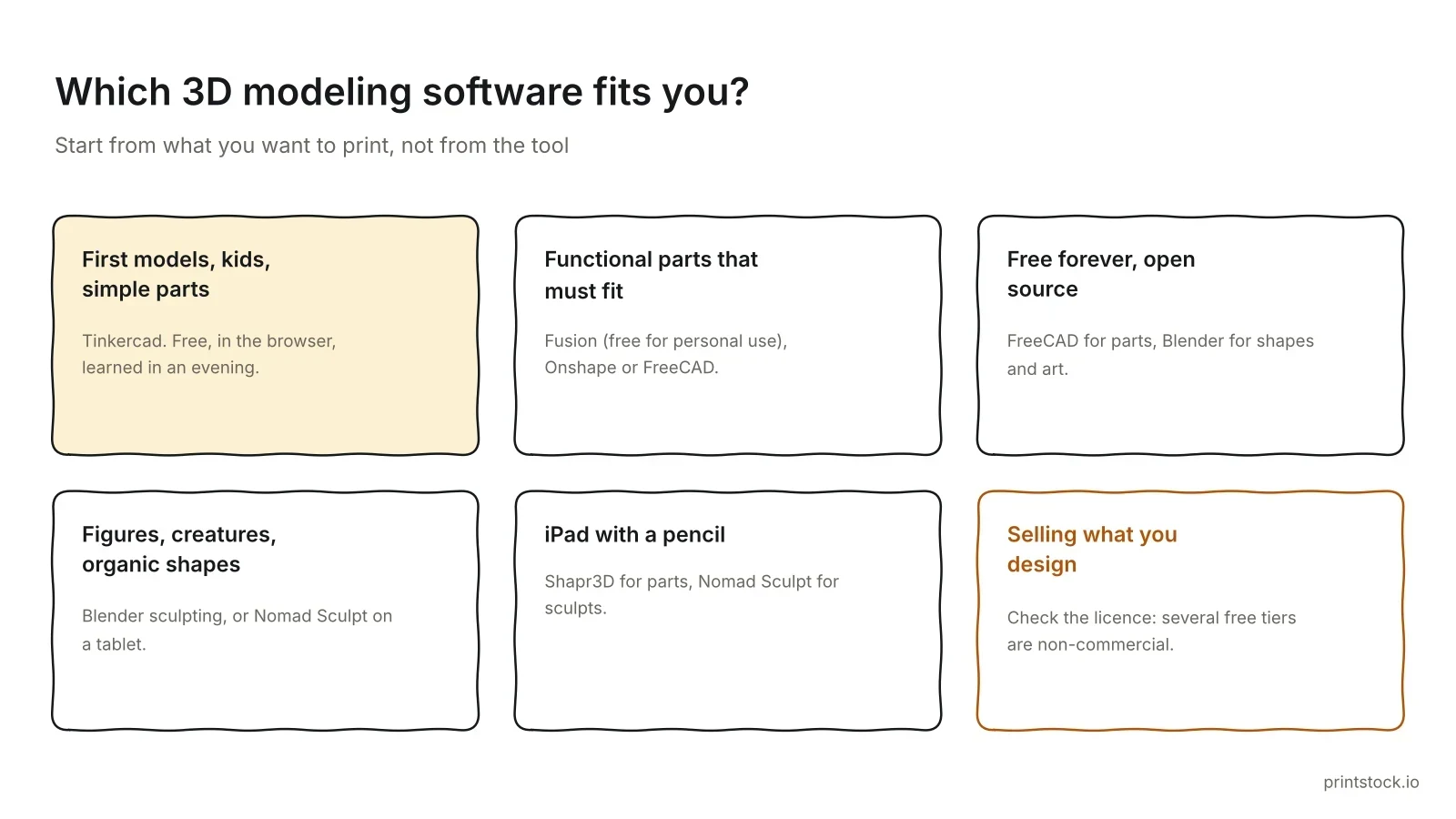
Tinkercad | Shape-based | Free | Browser | First models, kids, simple parts |
Fusion | Parametric CAD | Free for personal, non-commercial use | Windows, macOS | Functional parts, hobby engineering |
Onshape | Parametric CAD | Free, all documents public | Browser, tablets | CAD on any computer, open projects |
FreeCAD | Parametric CAD | Free and open source | Windows, macOS, Linux | Precise parts with no licence limits |
Blender | Mesh modeling and sculpting | Free and open source | Windows, macOS, Linux | Figures, props, organic shapes |
SketchUp | Surface modeling | SketchUp Free, web, non-commercial | Browser (paid: desktop, iPad) | Rooms, furniture, quick layouts |
Shapr3D | Direct CAD | Basic plan with limits | iPad, Mac, Windows | CAD with a stylus |
Nomad Sculpt | Sculpting | Paid app | iPad, Android | Sculpting on a tablet |
Licences and plans change; the details below are what each maker publishes now.
Tinkercad: the easiest place to start
Tinkercad is the best first program for 3D printing. It runs in a web browser, so there is nothing to install, and you build models by dragging boxes, cylinders, text and other shapes onto a work plane and grouping them. A shape marked as a "hole" cuts away whatever it overlaps. Tinkercad exports STL and OBJ files that any slicer can open.
Its limits show up with complex or curved parts: there are no proper fillets, no sketches with constraints and no history of steps you can edit. When you outgrow it, the habits you learned (measure first, build from simple shapes, subtract holes) carry straight over to CAD. Our step-by-step Tinkercad guide walks through a first printable part.
Fusion: powerful CAD, free for hobby projects
Autodesk Fusion (still widely called Fusion 360) is the most popular CAD program among 3D printing hobbyists. It is a full parametric CAD program with sketches, constraints, fillets, assemblies and simulation, and it can send a design straight to a slicer.
The free version is Fusion for personal use. Autodesk restricts it to home-based, non-commercial projects, and describes it as intended for anyone generating less than $1,000 a year from their work. It also limits how many documents you can edit at once, but STL, 3MF and STEP export remain available. If you plan to sell your designs or work on them for a company, you need a paid licence.
Onshape: professional CAD in a browser
Onshape gives you full professional CAD in a web browser, free, as long as your designs can be public. It runs on almost any computer, including Chromebooks and tablets, because the modeling happens on Onshape's servers. On the free plan, Onshape says you cannot create private documents: everything you make is visible to all Onshape users. That suits open-source projects and learning, not a product idea you want to keep secret. Private documents need a paid plan priced for businesses.
FreeCAD: free and open source, no strings
FreeCAD is the free, open-source choice for precise parts, with no licence limits on commercial use. It is parametric like Fusion and Onshape, runs on Windows, macOS and Linux, and reads and writes engineering formats such as STEP as well as STL. Version 1.1, released in March 2026, continued a long run of usability improvements after the 1.0 milestone.
FreeCAD's learning curve is steeper than Fusion's, and its interface is organized into "workbenches" for different tasks, which takes some getting used to. In exchange, nobody can change its terms, and your files stay yours.
Blender: the free tool for organic shapes
Blender is the go-to free program for figures, miniatures, props and anything sculpted. It is a complete open-source 3D suite for modeling, sculpting, animation and rendering, so most of its features have nothing to do with printing. For printing, the important parts are sculpting, mesh modeling with exact units, and the 3D Print Toolbox, which Blender's manual describes as a set of checks for mesh problems that could cause slicing issues.
Blender can make precise parts too, but measuring, editing dimensions later and making things fit is much easier in CAD. Many makers use both: CAD for the mechanical bits, Blender for the decorative ones.
SketchUp, Shapr3D and Nomad Sculpt
- SketchUp is quick and intuitive for rooms, furniture and simple layouts. SketchUp Free runs in a browser and is for non-commercial use. It builds surfaces rather than solids, so models often need cleaning before they print well.
- Shapr3D is CAD designed around an iPad and Apple Pencil, also available on Mac and Windows. Its free Basic plan limits how many projects you can have and exports only lower-resolution STL and 3MF; full-quality export is in the paid plans.
- Nomad Sculpt is a sculpting app for iPad and Android tablets, popular for figures and miniatures drawn with a stylus. Export the sculpt and check it in Blender or your slicer before printing.
What makes a model printable?
A printable model is a closed, solid shape at the right size, with walls thick enough for your nozzle. Whatever program you use, check these before you export:
- Closed and solid. The surface must have no gaps or holes, often called "watertight" or "manifold". CAD programs produce closed solids automatically; mesh and surface tools sometimes do not.
- Real-world units. Set the program to millimetres. A model exported in the wrong units arrives in the slicer 25 times too big or too small.
- Wall thickness. Walls thinner than about two nozzle widths, roughly 0.8 mm for a common 0.4 mm nozzle, print poorly or not at all.
- A flat base and sensible overhangs. Steep overhangs need supports. Designing a flat face to sit on the plate and keeping overhangs under about 45 degrees saves time and plastic.
- Clearance between parts. Pieces that slide or snap together need a gap, often 0.2 to 0.3 mm on a well-tuned printer. Print a small test first.
How to export and print your model
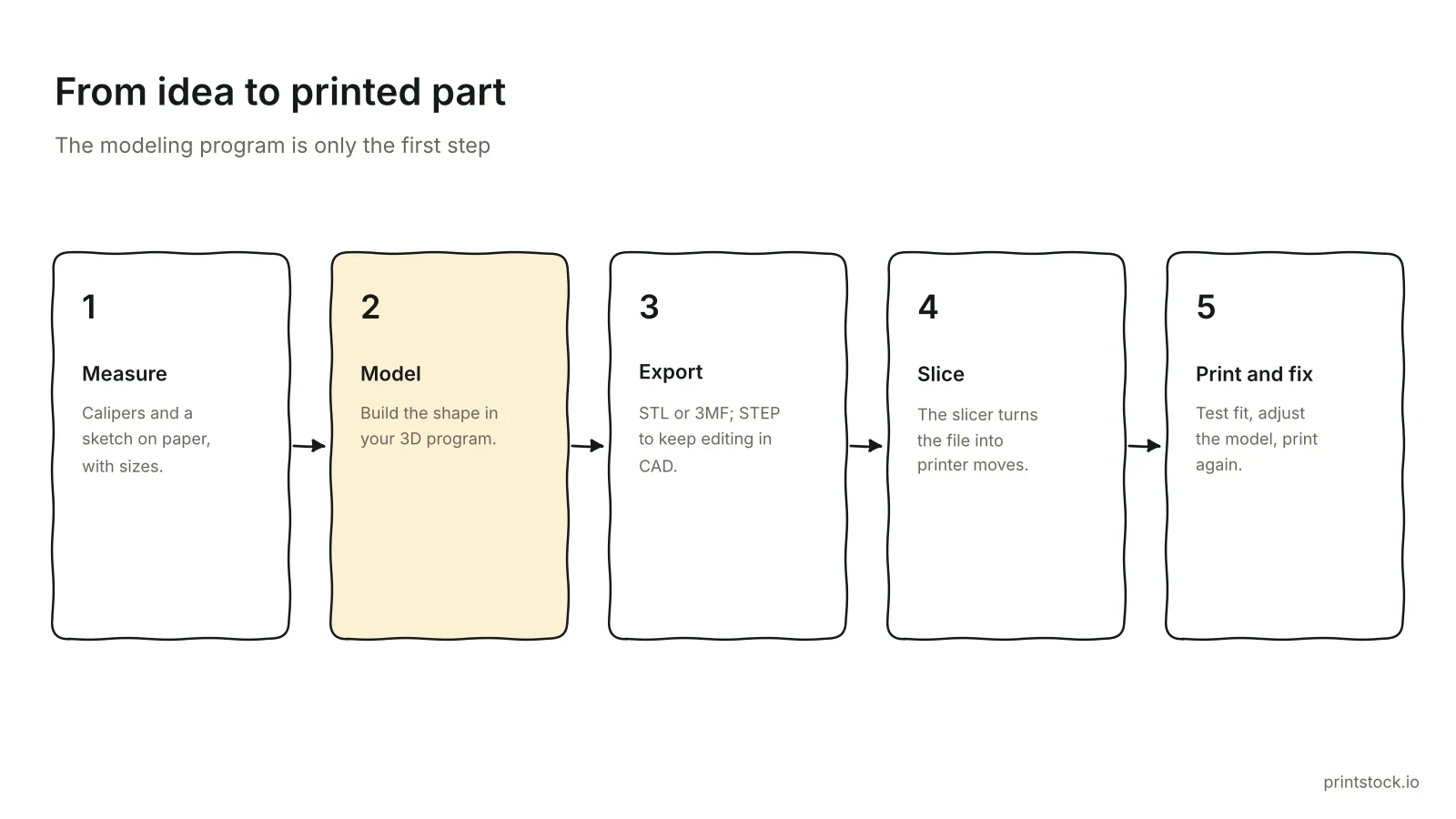
- Export STL or 3MF. STL is the universal format. 3MF is newer and can also carry units, colours and settings.
- Keep an editable copy. STL and 3MF are only surfaces. Save the program's own file, or STEP for CAD, so you can change dimensions later.
- Open the file in your slicer. The slicer (Bambu Studio, PrusaSlicer, OrcaSlicer, Cura and others) turns the model into the moves your printer makes, adding supports, infill and walls.
- Print a quick test. For parts that must fit, print just the critical section first, measure it, adjust the model, and print again.
Which software should you learn first?
- Total beginner, or teaching kids: Tinkercad, then move on when it feels limiting.
- You want to design useful parts: Fusion if your projects are personal and non-commercial; FreeCAD if you want no licence limits; Onshape if you work on many computers and do not mind public files.
- You want to make figures and art: Blender, or Nomad Sculpt if you prefer drawing on a tablet.
- You plan to sell designs or prints: choose software whose licence allows commercial use, such as FreeCAD or Blender, or a paid licence.
Where to go from here
Ready to make your first model? Follow our step-by-step guide to making a 3D model for printing. If your printed parts come out the wrong size at the bottom, see elephant's foot, and for choosing a filament for functional parts, read PLA vs PETG vs ABS.